Build your library
Pick the synths you want to search, then let Presetti render a short clip of each preset. You can pause, stop early, and add more synths later.
Before you start
- You've run Analyse and your synths are listed.
Building is when Presetti actually listens to your presets. It loads each one in its synth, plays a short note and saves the clip. Searching later compares those clips, so it's fast and works offline.
Pick your synths
Start with one or two synths you use a lot. You can add the rest later, and Presetti keeps everything it has already built.
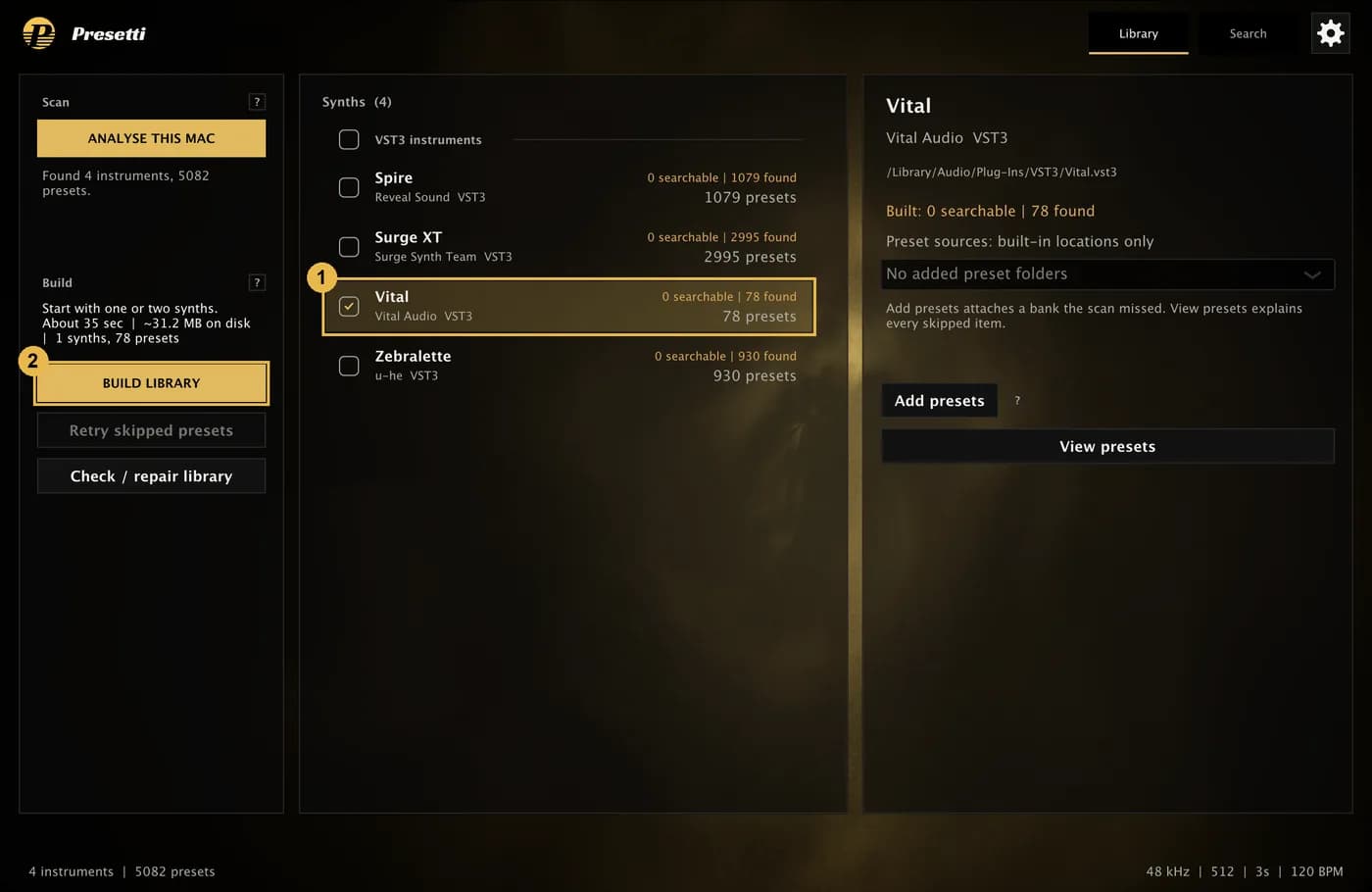
- Tick the box next to each synth you want.
- Check the estimate above Build library: how long it will take, how much disk space it needs, and how many presets that is. Then click Build library.
Ticks aren't remembered. Each time you open Presetti, or after a build finishes, nothing is ticked, so a build only does what you chose.
Confirm
A confirmation lists every synth in the queue with its preset count and any work already saved from an earlier build.
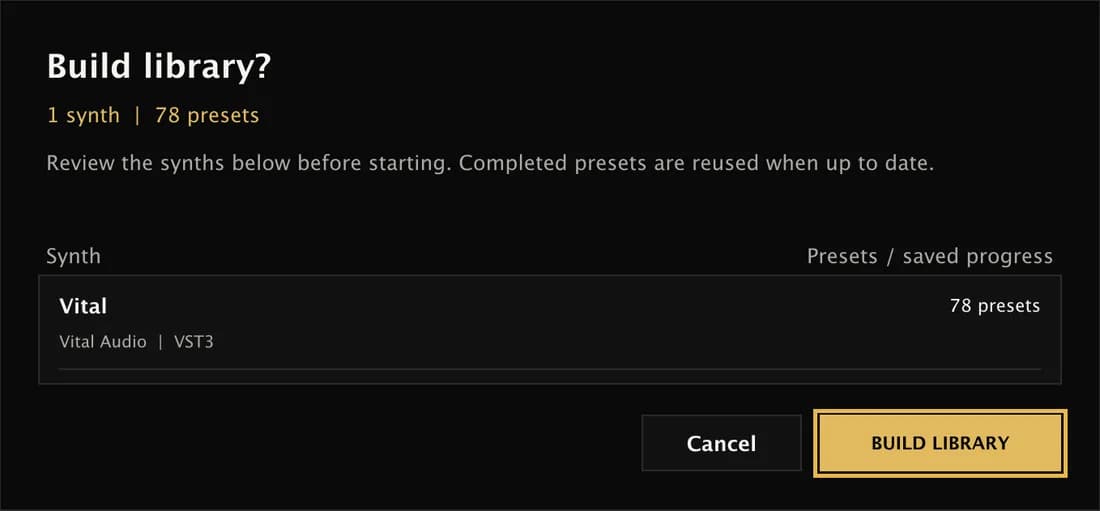
Click Build library to start, or Cancel to go back. Presets that were already rendered and haven't changed are reused, not rendered again.
While it builds

The Library tab switches to progress. Each synth gets a card with its own progress bar and counts of rendered, reused and failed presets. A blinking record icon next to a synth's name means it's rendering right now.
- Pause saves your progress. Next time, the button reads Resume build and carries on where it stopped. Discard paused build drops the saved queue but keeps the clips already rendered.
- Stop stops rendering, then finishes and publishes the presets completed so far, so you can start searching straight away.
You can keep using your computer while it builds. If you quit, finished clips are kept.
When it's done
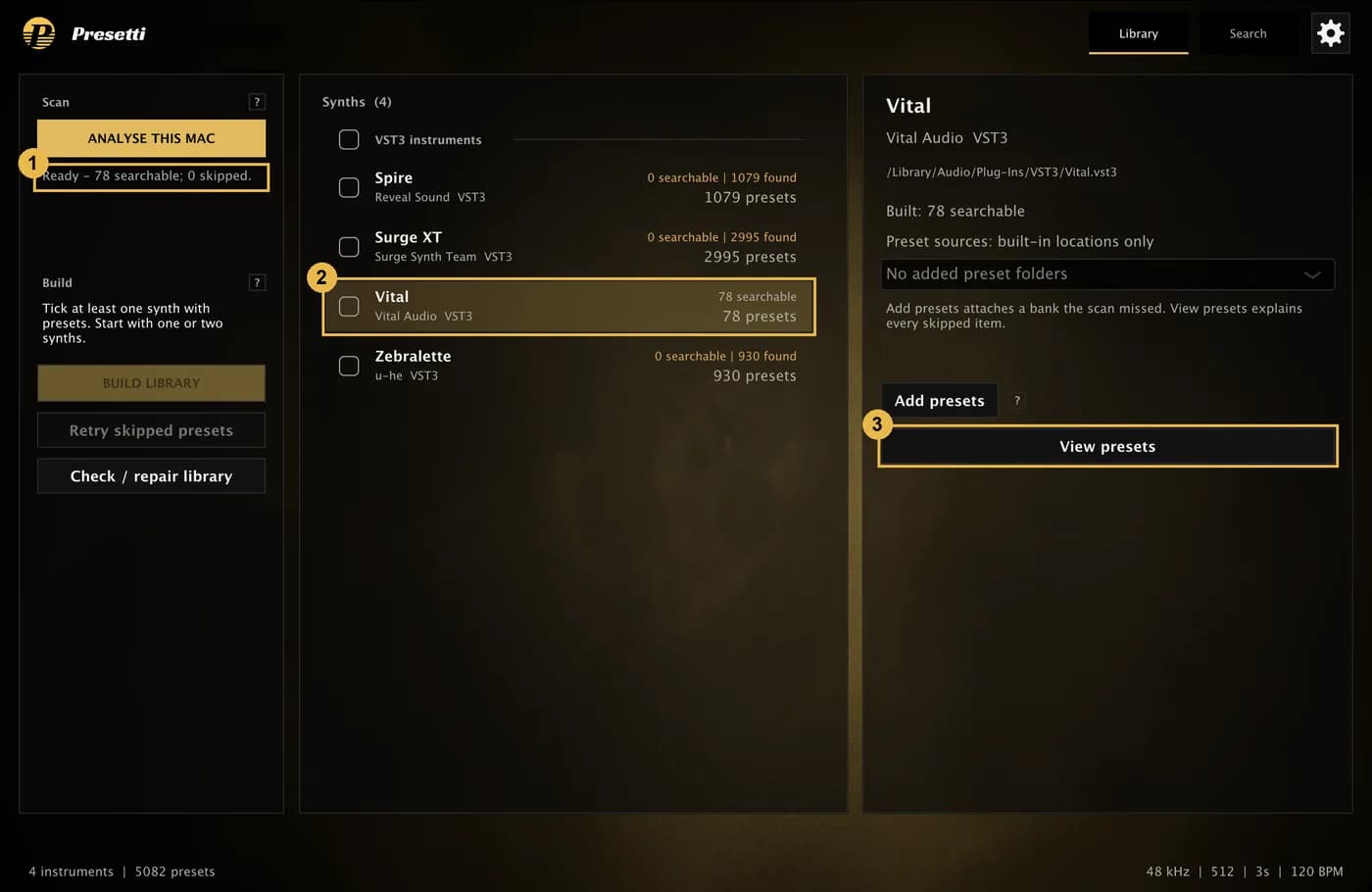
- The left panel reads Ready with the number of searchable presets and how many were skipped.
- The synth's row now shows how many presets are searchable.
- View presets opens the full list for the selected synth. See Check which presets are searchable.
Now switch to the Search tab and find similar presets.
A few presets are often skipped, for example a preset file that moved, or one that sounds exactly like the synth's default patch. That's expected. Skipped presets explains why and how to retry them.
Find your synths
Analyse your computer so Presetti lists every synth it can use and counts each one's presets. It takes a minute and doesn't render any audio.
Check which presets are searchable
Open a synth's preset list to see which presets are searchable, which were skipped and why, and where each preset file lives.